Security & backup
Notes are encrypted on your device and on the server. We never sell your data.
At a glance
Wherever your notes are, they're encrypted.
| Where | How it's protected |
|---|---|
| On your device | AES-256-GCM · key in the OS keystore |
| In transit | TLS |
| On the server | AES-256-GCM (at rest) · key kept apart from the database |
| Backup file | Your own password · PBKDF2 + AES-256-GCM |
On your device
Notes are saved on your device first. Nothing goes to the server before you sign in.
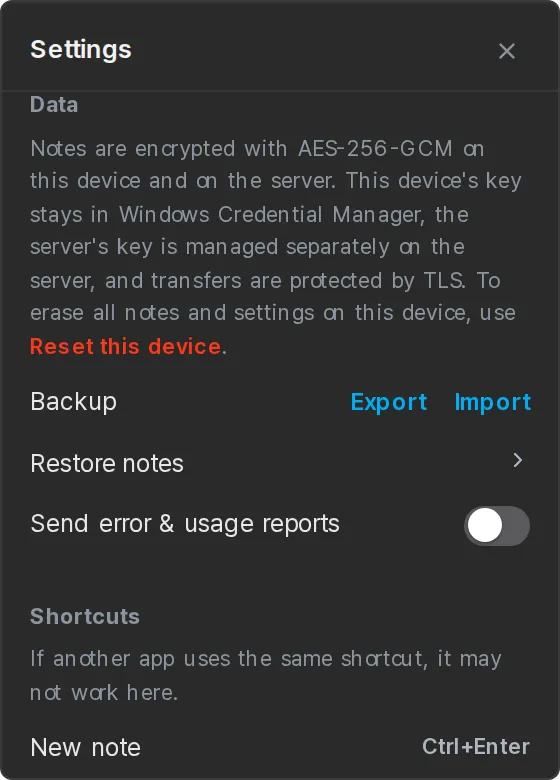
Notes, settings and drafts are stored encrypted with AES-256-GCM, so nothing sits on disk as plain text. The encryption key is kept apart from the note files, in the OS keystore (Windows Credential Manager, Mac/iPhone Keychain).
Once a day, an encrypted copy is saved, and the last 14 days are kept. If you ever need one restored, let Support know.
On the server (when signed in)
When you sign in, notes are also stored on the server so they can sync.
Data is protected with TLS in transit and stored encrypted with AES-256-GCM at rest. The encryption key is kept apart from the database, so even if the database leaked, the data would stay encrypted and unreadable.
The server processes your content to sync it and to reset passwords. That's why you can still recover your notes if you forget your password.
We never sell your data
We never sell your data, and we use your notes and photos only to run the service.
The only ad is a single in-house card at the top of the Planner. There's no third-party ad SDK, tracking or personalized ads, and neither the website nor the app uses tracking cookies or ad identifiers.
Usage stats for improving the service are sent only if you agree, and they never include note content, email addresses or IP addresses. You can turn them off anytime in Settings → Data. See the Privacy Policy for details.
Backup files (PC)
Keep your notes, folders and photos in one password-locked file. No sign-in needed; you make it in the PC app.
- Settings
- Data
- Backup
- Export
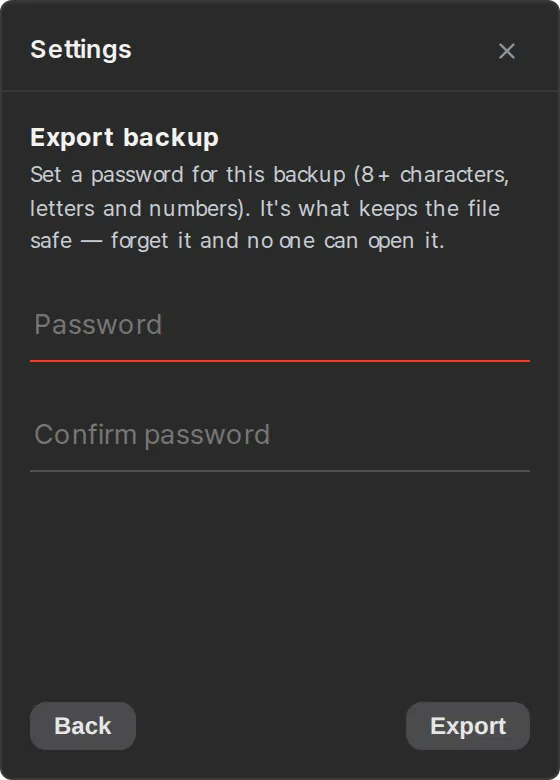
Go to Settings → Data → Backup → Export and enter a password twice to save a backup file (.tyranote). The password needs at least 8 characters with both letters and numbers.
The file is encrypted with AES-256-GCM using a key derived from your password (PBKDF2), so the file itself is ciphertext. You can move it to another PC or store it anywhere, and no one can open it without the password. The flip side is that if you forget the password, no one can open it at all, so keep it somewhere safe.
To bring it back, click Import in the same place. Your current notes are never overwritten: missing notes are restored, and if the same note has different content, both versions are kept.
Deleted or out of sync
Delete by mistake or edit on two devices at once — we don't throw notes away first.
Deleted notes stay in the trash for 30 days. Restore them from Settings → Data → Restore notes; after 30 days they're permanently deleted automatically.
If two devices edit the same note and the text ends up different, one side is kept as a conflict copy so you can see both. If only details such as the due date, star or folder differ, they're merged one by one.
New or lost device
Your notes are on the server, so sign in on another device and keep going.
The free plan allows 2 devices, so when you hit the limit you'll see a screen to choose a device to sign out. The notes on that device aren't deleted and stay on it.
If you lose a device, change your password with Reset password on the sign-in screen. Changing it signs out every device. A device that was signed out shows a 'You were signed out' notice card in the Planner, and once you sign in again it picks up syncing where it left off.
Reset and account deletion
You can clear just this device or delete your whole account. There's no separate way to reset only your account.
To reset this device, use the red 'Reset this device' link in the description under Settings → Data. If you're signed in, it signs you out first and then deletes this device's notes and deleted notes. The copy on the server stays, so signing in again brings them back. If you're not signed in, your notes and deleted notes are permanently deleted with no way to recover them, so on PC make a backup file first.
If you want to empty everything and start over, delete your account and sign up again. Delete account only appears while you're signed in.
- In the account section of Settings (Account & Sync on PC, My account on iPhone), click the red 'Delete account' link.
- Choose whether to keep the notes on this device or delete them too.
- Enter your password once more, and your account and the notes and photos on the server are deleted right away.
Server backups keep the data for up to 7 days before it's erased, and it can't be undone. If you chose to keep this device's notes, you can keep using them without signing in. If you're subscribed, your Apple subscription isn't canceled automatically, so cancel it first.